The service opens in the overview screen containing all arrival notifications created by your organisation; each row is one arrival notification. The detail screens can be found under Details or Edit. These contain, among other things, more information about any status and timelines.
Overview screen
In the overview screen, various tabs are visible on the left to make working more efficient and clearer:
- All notifications: all arrival notifications regardless of the status
- Not sent: arrival notifications that have been created but not sent
- Important: arrival notifications that have been sent but were not processed successfully.
You can look up an arrival notification using the various filters on the left side of the screen and by date range.
In the All notifications tab, a filter by status is also available. You can also use the search bar to search by document number and reference. Below you can see an example of the overview screen.
Detail screen
For each arrival notification there is Edit or Details. Here you can edit or view the arrival notification data.
Editing is only possible when an arrival notification has not been sent or has been rejected after being sent.
Details tab
The Details tab contains the details of the arrival notification. This is the information that has been sent to Customs. Below you can see an example.
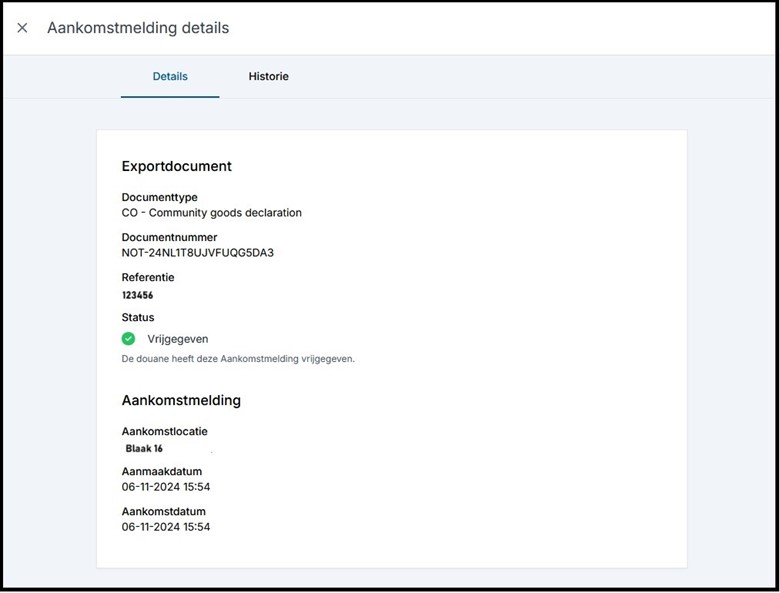 History tab
The History tab shows the steps the arrival notification has gone through in chronological order. This includes, among other things, information about when the arrival notification was created and accepted by Customs. You can also see information about any inspection and changes to the arrival notification here. The image below shows an example.
Edit screen
When an arrival notification has not yet been sent or has been rejected after being sent, the Edited link is visible in the overview screen behind the arrival notification. Click Edit to open the screen below. It shows the document type, number and, if applicable, the reason for rejection / the arrival notification not going through.
Add a new arrival notification
Add a new arrival notification by clicking + New Arrival Notification at the top right. A new arrival notification will open. See below what this looks like.
- Document type: enter the document type here (mandatory field)
- Document number: document number (MRN) obtained from Customs (mandatory field)
- Cargo handling agent: this field is only visible for Terminal and can only be completed by a terminal. Selecting a Cargo Handling Agent ensures that the notification becomes available in the Cargo Handling Agent’s overview for the export manifest.
When you make the shipment available for the Cargo Handling agent, you must always send the arrival notification as a terminal.
- Arrival location: (mandatory field) enter the location where the cargo is presented. You can set up fixed preferred arrival locations. You do this via the menu on the left side of the screen. Choose Settings for mail and other preferences.
Statuses of the arrival notification
In the image below you can see the possible statuses in the overview screen and the corresponding explanation.
Deleting an arrival notification
An arrival notification that has not been sent to Customs can be deleted. In the image below you can see where the button is located.
Settings for email and other preferences
The settings for email notifications and preferences are located in the overview screen on the left under Preferences.
The main administrator of an organisation can add email addresses for notifications and other preferences. If you do not see the pencil icon, ask the main administrator of your organisation to adjust the settings.
Set up preferences
- You can set up a default document type. When creating a new arrival notification, this document type will appear by default; you can always adjust the document type.
- You can specify preferred arrival locations. You can save an arrival location under a name (alias) of your choice. When creating an arrival notification, you can then easily select an arrival location.
notification settings
This screen offers the option to set up an email notification for various events. These notifications are sent to the user of the service. You can choose the following notifications:
- Arrival notification under inspection
- Arrival notification refused
- Arrival notification released
- Customs unreachable
The added persons receive the notifications without having access to the service. External email addresses can also be added.
Select the pencil icon. A screen will then open where email addresses can be added and deleted.
Part of