
In this Quick Start Guide for traction suppliers, we will explain the use of the service Hinterland Container Notification Rail in a few easy steps.
This service allows you to view the status of train visits and containers through one single window. Here, you have 24/7 real-time insight at deepsea terminals and depots.
The service Hinterland Container Notification Rail is aimed at the following target groups:
The ‘Rotations’ dashboard offers you 24/7 real-time insight into the train rotations and terminal visits submitted by the customer. At the top are the scheduled rotations that have not yet commenced. Below that are the rotations in operation, the completed operations and, in conclusion, the cancelled rotations.
Below are the steps you need to follow to download the train composition after completing operations at the terminal.
After completing the operation at the terminal, the buttons ‘Download train composition (after operations)’ and ‘Download realised train composition’ will appear.
If these buttons do not appear after the visit is completed, contact the terminal to ask if they can complete the visit manually in the HCN Rail web screens. Please use the contact details below to do so.
This file shows the planned outbound train composition including any deviations in the remarks.
In the ‘Operational Remarks (Slot)’ and ‘Operational Remarks (Wagon)’ columns it is indicated by means of ‘Planned load/discharge did not occur [(container number])’ or ‘Unplanned load/discharge occured [(container number])’ whether deviations from the planning have occurred at slot/wagon level.
The slot position is not always provided by the terminal in the discharge/load confirmation. If this is the case, the ‘unplanned loads/discharges’ are indicated in the ‘Operational Remarks (Wagon)’ column, where they are indicated on the wagon at slot position 1 by default.
This file shows the actual train composition after the terminal completes the operation.
Again, in case no slot position is fed back by the terminal, the container will default to slot position 1 of the wagon on which the container was loaded.
On the left side of the screen, the status of the visit is listed for each visit. The plane indicates that the request has been submitted. A green check mark means that the pre-notification has been accepted. A red cross indicates that the terminal has rejected the visit. The visit can be modified and resubmitted. If a visit is rejected, the terminal will include a remark.
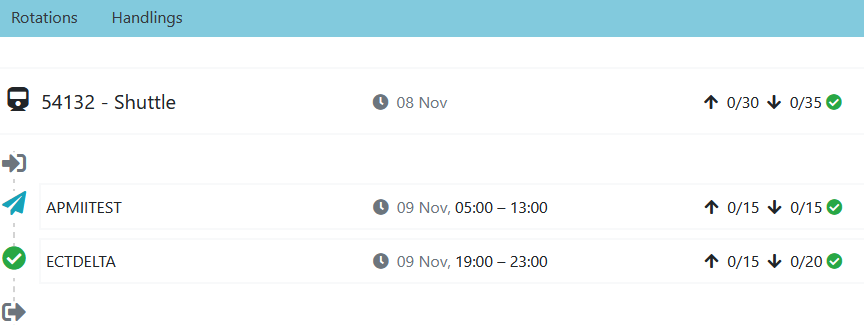
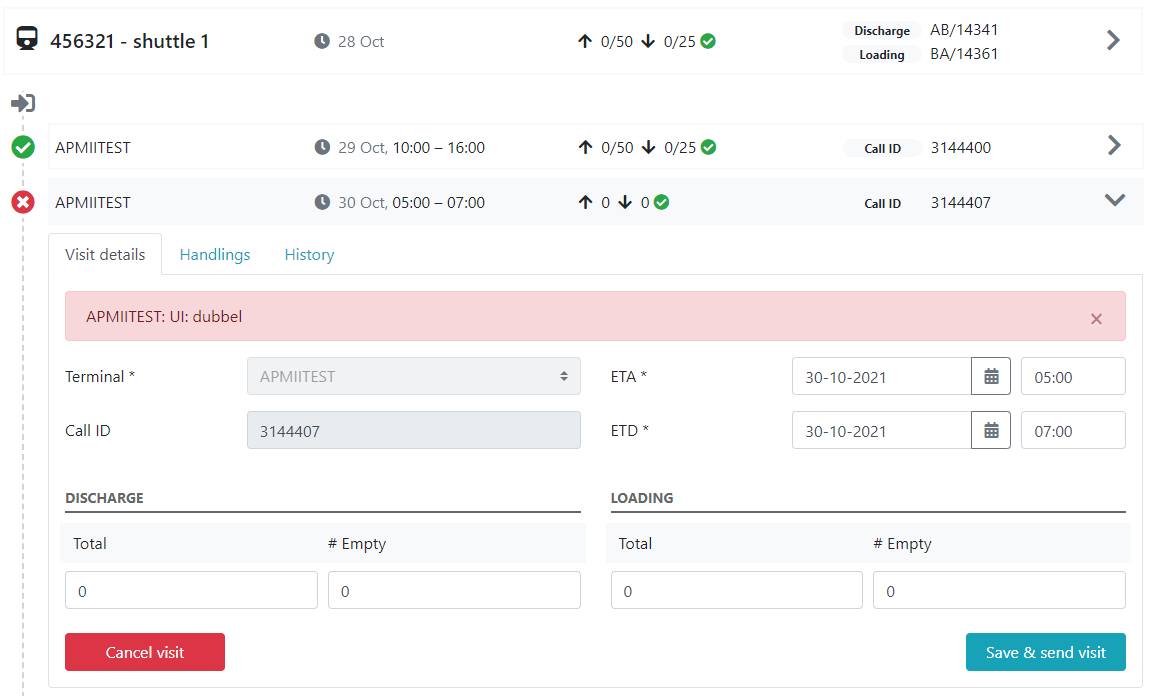
The screen also shows how the requested visit relates to the slots.
In the overview below:
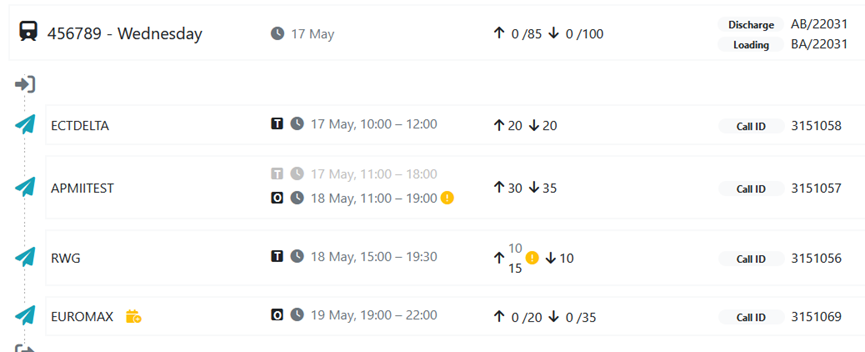
Rotation level
You can track the progress in the following ways
Visit level
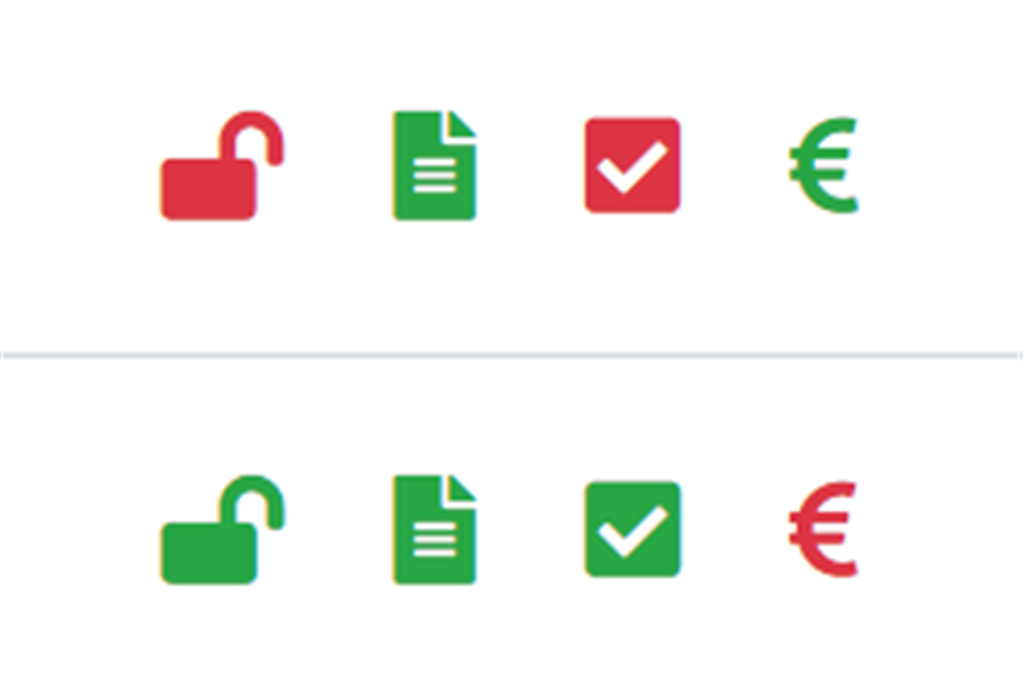
The statuses below are displayed per container (green = OK, red = action required):
Container delivery
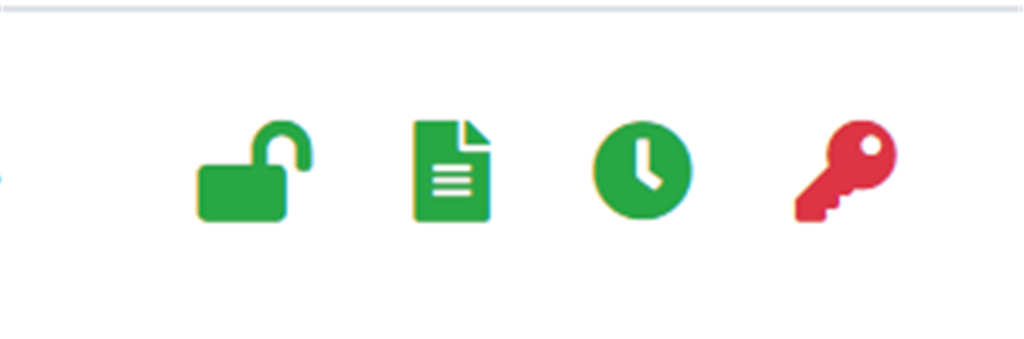
Container collection
Portbase, at the request of the Rail Connected programme, has developed a dashboard – called RailWise – which provides insight into the efficiency, capacity and reliability of rail freight transport (containers only). These insights are based on data from HCN Rail and are therefore only available to terminals connected to this service.
In 2025, agreements were made with the participating parties regarding the use of the dashboard. If you are not yet using the dashboard but would like to do so in the coming year, please inform us before 16 October by contacting our Sales department.
You can access the dashboard by clicking on the RailWise tab at the top of the screen in HCN Rail. The dashboard is available on weekdays from 08:00 to 18:00.
The dashboard consists of several tabs containing different metrics, as outlined below. In the course of January, an additional tab will be published providing explanations of how the metrics are calculated.
3.1 ‘KPIs’ tab
This tab shows the metrics listed below. These metrics are based on the underlying data from the charts on the other tabs.
Your KPIs show metrics based on your own data, while Market KPIs show the market average for these metrics.
See the example below. The screenshot was taken in week 47. The large figures show the values for the previous week (week 46). The smaller figures underneath show the figures for the week before that (week 45). In the background, a grey chart shows the development of these metrics over the past period.

Example chart: number of voyage omits
3.2 ‘Turnaround port’ tab
The metrics on the Turnaround port tab provide insight into how many rotations are still changed or cancelled after the planning has been definitively fixed in the HCB Rail timetable (and therefore not at ProRail) on Thursday at 23:59.
3.3 ‘Terminal’ tab
The metrics on the Terminal tab provide insight into how efficiently and predictably operations are handled at the terminal.
3.4 ‘Call size’ tab
The metrics on the Call size tab provide insight into deviations in call size.
The filter options allow you to search your data in a targeted way. The following filters can be applied within the dashboard. Available filters may differ per tab.
Throughout the entire dashboard, each organisation can only view its own data and, for certain metrics, the market average.
The Port of Rotterdam does have insight into your data, provided you have given permission for this. The Port Authority will contact you separately regarding this. For questions on this topic, please contact the Port of Rotterdam.
Under Configuration | Application preferences, you can specify an email address for status changes of visits.
Onder Rotation (Reis), Visit (Treinbezoek) en Handlings (Container) zijn alle acties en time stamps in te zien.
Een naslagwerk van alle uitgevoerde acties en updates. Klik daarvoor bijvoorbeeld via Rotation, Visit of Handling op de tab ‘History’ om alle updates te zien.
Hiermee heeft u altijd inzicht in alle wijzigen die hebben plaatsgevonden. Ga met uw muis over een update en klik op het pop-up icoon om uw rotatie op dat punt in de tijd te bekijken.
Klik op ‘Report issue’ om direct onze Customer Service te informeren over uw probleem met het werken in MCA Rail.